Discord Permissions Explained
Published June 14, 20263 min read
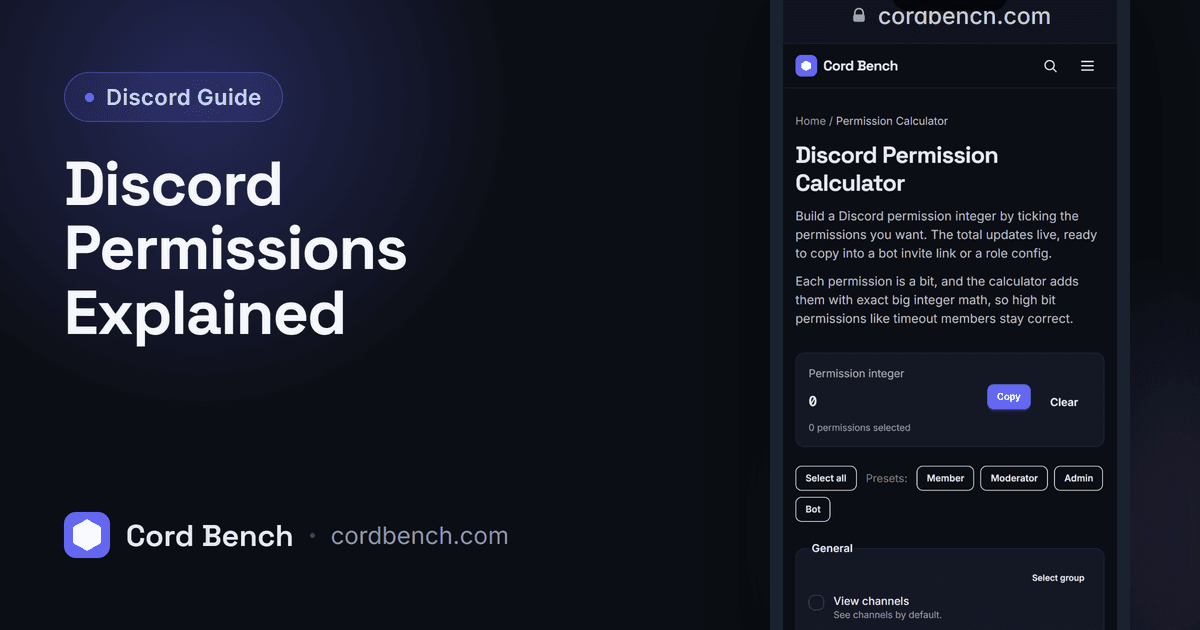
Discord permissions decide what each role can do, from sending messages to banning members, and they are stored as one big number behind the scenes. We build the permission calculator that turns that number on and off by checkbox, so this explains how the bits work and how to set roles without locking yourself out.
Understanding Discord Permissions
A permission is a single yes or no switch, like Send Messages, Manage Channels, or Kick Members. Roles bundle these switches, and a member gets the combined permissions of every role they hold, plus any per channel overrides.
Permissions stack as allow and deny. The @everyone role is the base for the whole server. Other roles add to it, and a channel can override a role for that channel only. Knowing that order is most of what keeps a server sane.
How Permission Bits Work
Under the hood each permission is one bit in a number. Send Messages is one bit, Manage Roles is another, and so on. When you turn several on, Discord adds their values into a single integer called a permission bitfield.
That integer is what a bot invite link or the API uses. A value like 8 is Administrator on its own. 2048 is Send Messages. Combine them and the number grows. You rarely read these by hand, which is the point of a calculator.
Common Roles and What They Need
A basic Member usually needs to read and send messages, add reactions, connect to voice, and embed links. A Moderator adds Manage Messages, Kick Members, Timeout Members, and often Manage Nicknames. An Admin role with Administrator bypasses every check, so hand it out carefully.
Bots only need the permissions for their job. A music bot needs Connect and Speak, not Ban Members. Granting a bot Administrator because it is quicker is the habit that causes the worst incidents.
How to Calculate Permissions by Hand
In theory you take the value of each permission you want and add them up. Send Messages plus Embed Links plus Add Reactions gives one integer you can drop into an invite link.
In practice the values are large and easy to mistype, and Discord updates the list as it adds features. Adding the wrong bit can grant something you did not intend, which is why hand math is risky for anything beyond one or two permissions.
The Easy Way: The Permission Calculator
Our permission calculator shows every permission as a labeled checkbox. Tick the ones a role or bot should have and it gives you the integer and the invite link, ready to paste. No adding, no guessing which bit is which.
It is the safe way to build a bot invite, since you can see exactly what you are granting before you authorize it.
Permission Mistakes and Security Risks
The biggest risk is Administrator. It ignores every other setting and every channel override, so one compromised account or bot with Administrator can wipe a server. Grant specific permissions instead.
Watch role order too. A role can only manage roles below it, and channel overrides beat role permissions, so a member denied Send Messages in a channel stays denied even if their role allows it. When something behaves oddly, check the channel override before the role.
Setting Up Roles You Can Trust
Start from @everyone with a minimal base, add a Member role for verified users, and keep elevated permissions on a small Mod and Admin set. Give bots only what their task needs and review invites with the calculator first.
A few minutes of checkboxes beats untangling a permission mess after something goes wrong. Once the roles are right, most day to day moderation stops needing any math at all.
Discord Permission Calculator
Calculate Discord permissions fast. Toggle the ones you need and copy the permission integer for a bot or role.
Open the permission calculator