Discord Timestamps and Format Codes Explained
Updated June 14, 20263 min read
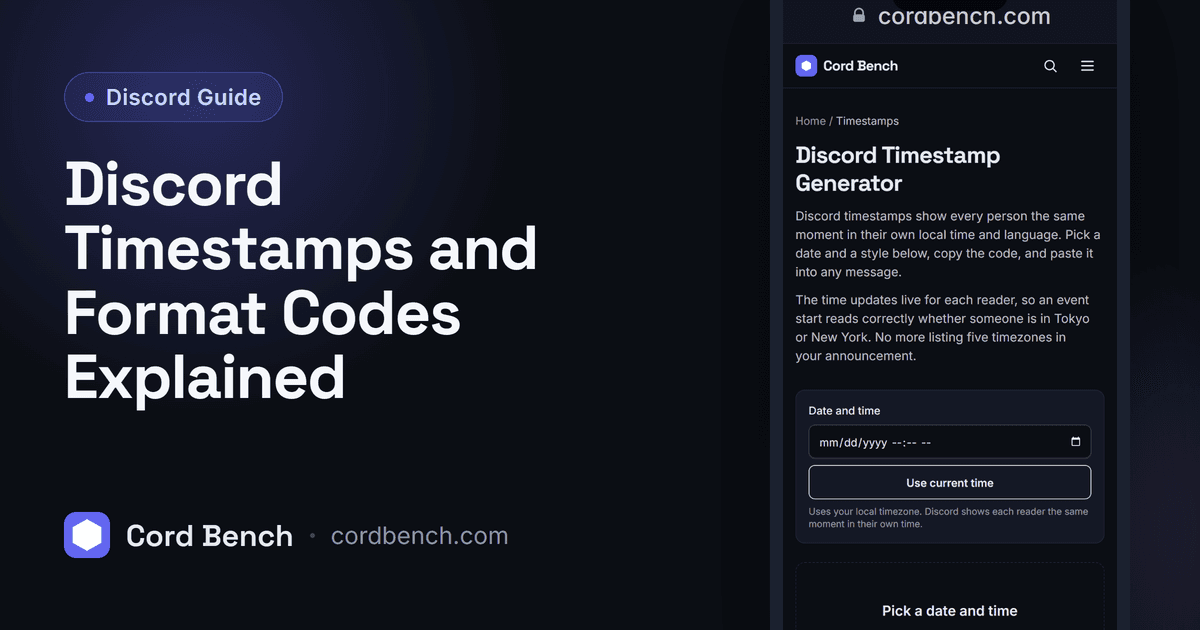
A Discord timestamp is a short code that shows a date or time and converts it to each reader's own local zone. Type one line and a person in Tokyo and a person in Chicago both see the right wall clock time. We build the timestamp generator that produces these codes, so the formats and gotchas below come from running them against live Discord on desktop, web, and mobile.
What Discord Timestamps Are
A timestamp is text that Discord renders as a live date. The raw form is a Unix time, the number of seconds since January 1, 1970 in UTC, wrapped in a tag. You post the same number to everyone. Discord then displays it in the viewer's local time, so you never have to write "3pm EST / 8pm GMT" again.
It shows up as a subtle highlighted date in the message, and hovering reveals the full date. Because the value is fixed and only the display shifts per person, a timestamp is the reliable way to announce a moment to a server with members in different countries.
Why Use Dynamic Timestamps
Static times cause missed events. Someone reads "raid at 20:00" and guesses the zone wrong. A timestamp removes the guess, since every member sees their own time, and the relative style even counts down to the moment.
They also age well. An announcement pinned a week ago still reads correctly, and a relative timestamp updates on its own from "in 3 days" to "in 2 hours" to "2 hours ago" without you editing anything.
The Timestamp Format
The base syntax is <t:UNIX> where UNIX is your seconds value. For example, <t:1766664000> shows a full date and time. Add a style letter to control the look, using <t:UNIX:STYLE>.
The styles are single letters and they are case sensitive. Short time is t, long time with seconds is T, short date is d, long date is D, short date and time is f (the default), long date and time with the weekday is F, and relative is R. So <t:1766664000:R> reads as something like "in 6 months" while <t:1766664000:F> reads "Thursday, December 25, 2025 12:00 PM".
How to Make a Timestamp by Hand
First get the Unix value for your date in UTC. You can read it from a converter or compute it, then drop it into the tag. The part people get wrong is the zone. The number must represent UTC, not your local clock, or the displayed time is off by your offset for everyone.
Once you have the number, type the tag straight into the message box. Discord shows the rendered date as you type, so you can confirm it looks right before you send.
The Faster Way: The Timestamp Generator
Picking a date in a calendar beats counting seconds. Our timestamp generator takes a date, a time, and your zone, then hands back the exact tag for every style so you copy the one you want. It does the UTC conversion for you, which is where hand made timestamps usually break.
It helps when you need the same moment in two styles, for example a long date in the announcement and a relative countdown in the pinned message.
Common Timestamp Mistakes
The frequent one is using local time as if it were UTC. If you are at UTC plus 5 and you paste your wall clock seconds, the event shows five hours early to everyone. Convert first.
Timestamps also only work in messages. They do nothing in a channel topic, a nickname, a status, or server settings, where the tag stays as raw text. Mixing up d and D, or t and T, gives a shorter or longer form than you wanted, so check the case of the style letter.
Where Timestamps Help Most
Reach for the relative style R when you want a countdown to a launch or a raid, and the long form F when people need the full date on the calendar. For a recurring event, post a fresh timestamp each cycle rather than editing the old one, since the number is fixed in time.
Pair a timestamp with a scheduled message and the reminder posts itself while still reading in every member's own zone. That combination covers most of what a server needs around timing.
Discord Timestamp Generator
Make Discord timestamps that show each person their own local time. Pick a date and style, then copy the code.
Open the timestamp generator