How to Find a Discord ID
Published June 10, 20263 min read
Every user, server, channel, and message on Discord has a unique ID number. You often need this ID to use bots, troubleshoot permissions, or pull data from the platform. Here is the quick way to find a Discord ID, no matter what you are looking for.
Turn on Developer Mode First
Discord hides IDs by default. To see them, you must enable Developer Mode. Open your User Settings (the gear icon next to your username at the bottom left).
Go to the Advanced section under App Settings. Toggle the switch for Developer Mode to on. That is the only step. Now you can copy IDs from the app.
Find Your Own User ID
With Developer Mode on, right click your own name anywhere in the app. In the chat area, right click your name in a message. In the member list, right click your name. Choose Copy ID from the menu.
Your user ID is a string of numbers like 123456789012345678. It stays the same even if you change your display name or your unique username. It is not the same as the four digit discriminator that used to exist. Today, your unique username is a lowercase name with no numbers after it, but your ID is the permanent number.
Find Another User's ID
Right click their name in a chat message or in the member list on the right side of a server. Select Copy ID. You can also right click their avatar or their name in a direct message.
That ID works for any bot command that needs a target user, like getting their join date or assigning a role. If the user has a nickname in the server, right click their name in the member list, not the display name in chat, to avoid confusion.
Get a Server ID
Right click the server name at the top left of the channel list. The menu that appears has a Copy ID option. Click it.
Server IDs are useful for bots that manage server settings or for logging. If you cannot right click the server name, try right clicking the server icon in the left sidebar instead. Both work the same way.
Get a Channel or Message ID
For a channel, right click the channel name in the left sidebar. Choose Copy ID. This works for text channels, voice channels, and forum posts.
For a message, right click the message itself (but not a link or an embed). Choose Copy ID. You need this for bots that reply to or edit a specific message. Note that you can only copy a message ID if the message is in a server or a direct message that you can still see.
Common Mistakes to Avoid
Do not confuse the unique username (like johndoe) with the user ID. The username is for mentioning someone. The ID is a number. Also, if you copy an ID from a mobile device, the steps are the same: long press the name, channel, or server and look for Copy ID in the pop up menu.
If Developer Mode is off, the Copy ID option will not appear. That is the most common reason people cannot find an ID. Finally, remember that IDs are specific to each object. A server ID will not work as a channel ID, and a user ID will not work as a role ID.
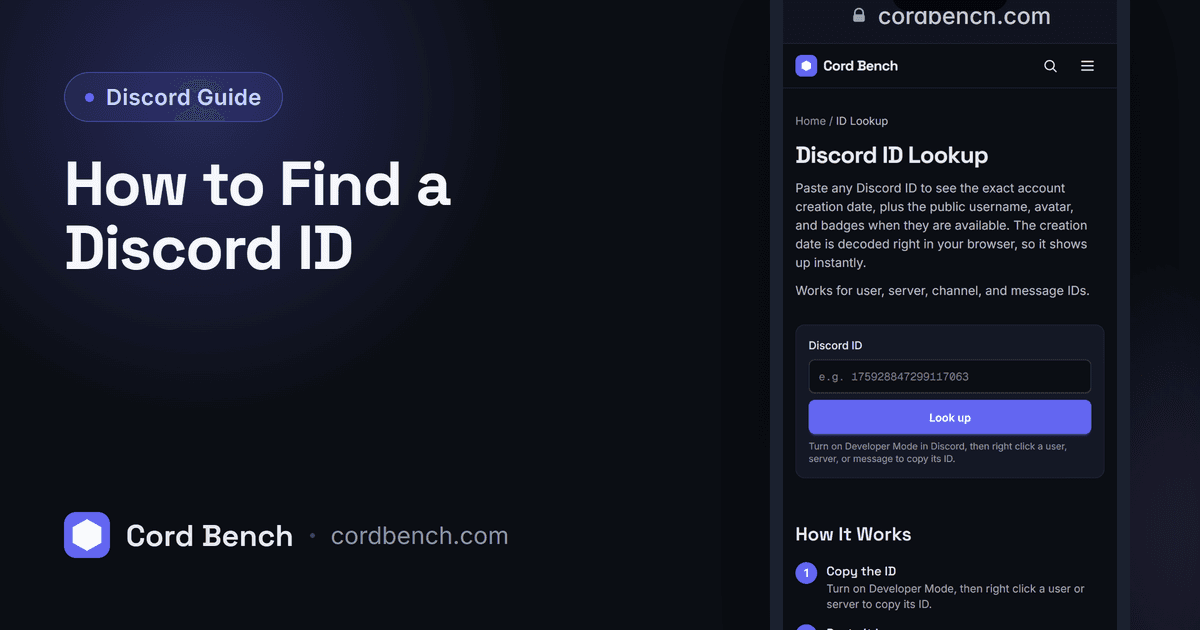
Discord ID Lookup
Look up any Discord ID. See the username, avatar, badges, and the exact account creation date.
Open the ID lookup