How to Send a Discord Webhook Message
Published June 14, 20263 min read
A Discord webhook is a URL that posts a message to one channel, with no bot account required. You can hit it with a quick request or a tool and drop in a clean embed. We build the webhook sender, so this covers making a webhook, sending to it by hand, and designing an embed that reads well.
What a Discord Webhook Is
A webhook is a special URL tied to a single channel. Anything sent to that URL appears as a message in the channel, with a name and avatar you choose. There is no bot to host and no login, just the URL.
It is one way only. A webhook can post into Discord, but it cannot read messages or respond. That makes it a good fit for alerts, announcements, and posts from another service.
When to Use Webhooks
Reach for a webhook when something outside Discord needs to announce something inside it: a build finished, a form was submitted, a stream went live. It is also handy for posting a formatted embed without setting up a full bot.
If you need the message to react, take commands, or read the channel, you need a bot instead. A webhook only sends.
How to Create a Webhook
Open the channel you want to post in, go to its settings, then Integrations, then Webhooks. Click New Webhook, give it a name and an avatar, pick the channel, and copy the URL. You need the Manage Webhooks permission to do this.
Treat the URL like a password. Anyone who has it can post to your channel as that webhook. If it leaks, delete the webhook in the same menu and the old URL stops working at once.
How to Send a Webhook Message
At its simplest you send a POST request to the URL with a JSON body like {"content": "Hello"}. With curl that is curl -H "Content-Type: application/json" -d '{"content":"Hello"}' WEBHOOK_URL. The message shows up instantly under the webhook's name.
You can override the name and avatar per message with username and avatar_url fields, and post a richer message with an embeds array instead of plain content.
The Easy Way: The Webhook Sender and Embed Builder
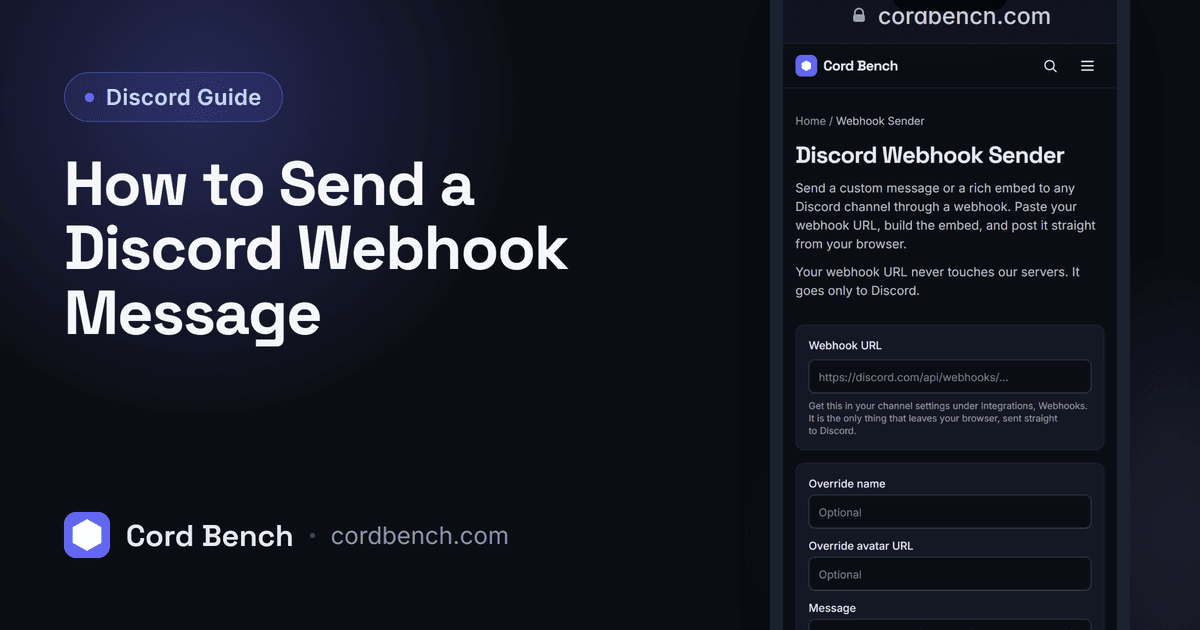
Writing JSON by hand gets old fast. Our webhook sender gives you fields for the content, the embed title, description, color, and images, then posts it for you. You paste the webhook URL, build the message visually, and send.
It is the quick path for a one off announcement or for testing what an embed will look like before you wire it into a script.
Designing a Clean Embed
An embed is the boxed message with a colored bar on the left. Keep the title short, put the detail in the description, and use the color bar to signal type, for example green for success and red for an error. Fields sit in columns, so use them for short label and value pairs, not long text.
Add a thumbnail or an image only when it helps. A small author line and a footer with a timestamp make an embed feel finished without crowding it.
Fixing Common Webhook Errors
A 401 or 404 almost always means a wrong or deleted URL, so copy it fresh from the channel settings. A 400 means the JSON is malformed, often a missing quote or a content that is empty with no embed attached.
If posts stop suddenly, you may have hit the rate limit, so space out bulk sends rather than firing them in a tight loop. A short delay between messages keeps the webhook from being throttled.
Discord Webhook Sender
Send a Discord webhook message with a custom embed. Build the embed, paste your webhook URL, and post it.
Open the webhook sender