How to Set Up a Discord Server
Published June 10, 20264 min read
Creating a Discord server is free and takes only a few minutes. This guide walks you through the setup process step by step, from making the server to inviting your first members. By the end, you will have a working server ready to customize.
Create Your Server
Open Discord on your computer or phone and log in. On the left side of the app, look for a green plus button inside a circle. Click that button to start a new server.
Discord will ask you to choose a template. For most people, the "Create My Own" option is best. You can also pick a template for gaming, a study group, or a club. After you select a template, give your server a name. The name can be anything you like, and you can change it later.
Click the "Create" button. Your server is now live. You will see a default text channel called #general and a voice channel called General. You are the owner and can manage everything.
Set up Your Server Icon and Description
Right click your server name at the top left and select "Server Settings." Under "Overview," you can upload a profile picture. The image should be at least 512x512 pixels and in JPG or PNG format. A good icon helps people recognize your server quickly.
In the same area, write a short description of your server. This text shows up when people search for servers or get an invite link. Keep it simple, like "A place to talk about gardening" or "Community for indie game fans."
Create Text and Voice Channels
Channels organize conversations. To add a text channel, right click on the category (usually "Text Channels") and choose "Create Channel." Pick "Text" as the type, then give it a name. Use lowercase letters, numbers, and hyphens. For example, "announcements" or "general-chat."
For voice channels, follow the same steps but choose "Voice." Voice channels let members talk with microphones. You can make channels for different topics like "Gaming VC" or "Study Room." You can also set a user limit on each voice channel by clicking the channel settings and adjusting the "User Limit" slider.
Adjust Basic Permissions and Roles
By default, every new member gets the @everyone role. To control what people can do, go to "Server Settings" and then "Roles." Click the @everyone role and turn off permissions you want to restrict. For example, you might disable "Send Messages" in an announcements channel so only admins can post.
To create a new role, click "Create Role" and give it a name like "Moderator" or "Member." Then enable permissions such as "Kick Members" or "Manage Messages." After saving, assign the role to a person by right clicking their name in the member list, choosing "Roles," and checking the role. Roles are a simple way to give trusted people extra control.
Set up Moderation Tools
Discord includes built in moderation features. Go to "Server Settings" and then "Moderation." Turn on "Explicit Media Content Filter" to scan images and videos. Choose a level: "Scan media from all members" is safest for public servers.
You can also set up "Verification Level." Higher levels require new members to have a verified email or a phone number on their Discord account. For a public server, level 2 or 3 helps reduce spam and bots. If your server is for close friends, level 1 is fine.
Consider adding a bot like MEE6 or Dyno for extra moderation. These free bots can auto-remove spam, welcome new members, and log deleted messages. Find them on top.gg, invite them to your server, and follow the bot's setup guide.
Invite People and Share Your Server
To invite someone, click the down arrow next to your server name and select "Invite People." Discord will generate a link. By default, the link never expires and has no limit on uses. You can set an expiration time and a maximum number of uses in the "Edit Invite Link" menu.
Share the invite link in messages, on social media, or on a website. Anyone with the link can join your server. To keep your server private, make sure you only share the link with people you trust. You can also delete old invite links at any time in "Server Settings" under "Invites."
Remember: your Discord username is now a unique lowercase name followed by a four digit number (for example, username1234). Your display name on the server can be anything, including capital letters and spaces. Tell your members to set their display name in the server by right clicking their name and choosing "Change Nickname."
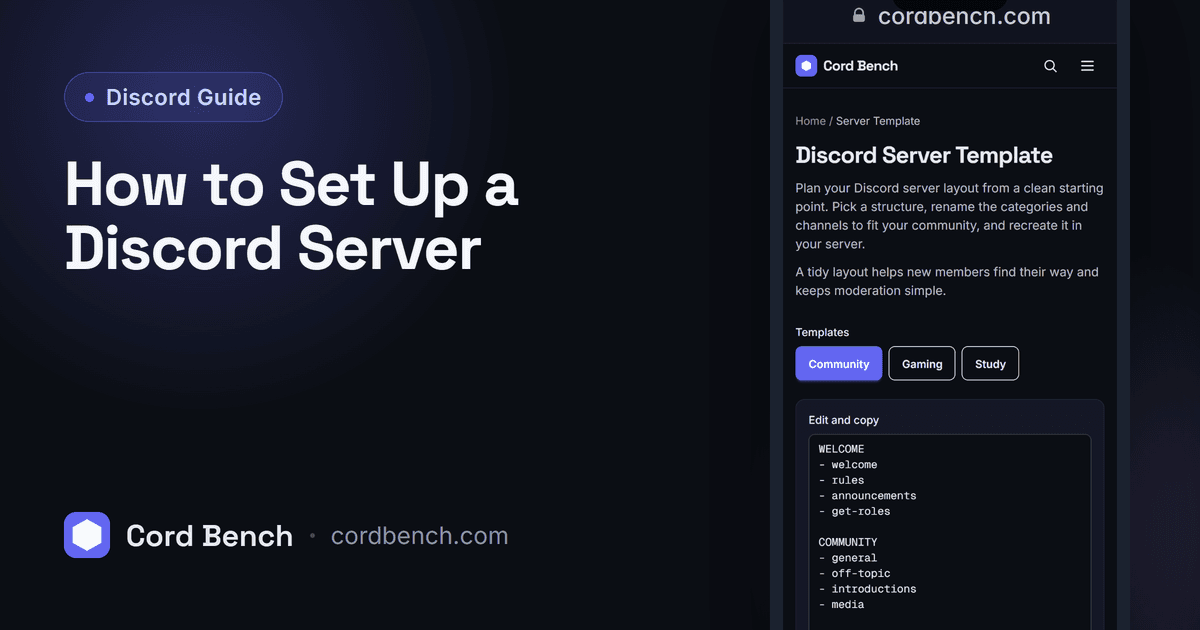
Discord Server Template
Plan your Discord server layout. Start from a category and channel template and copy the structure.
Open the server template